
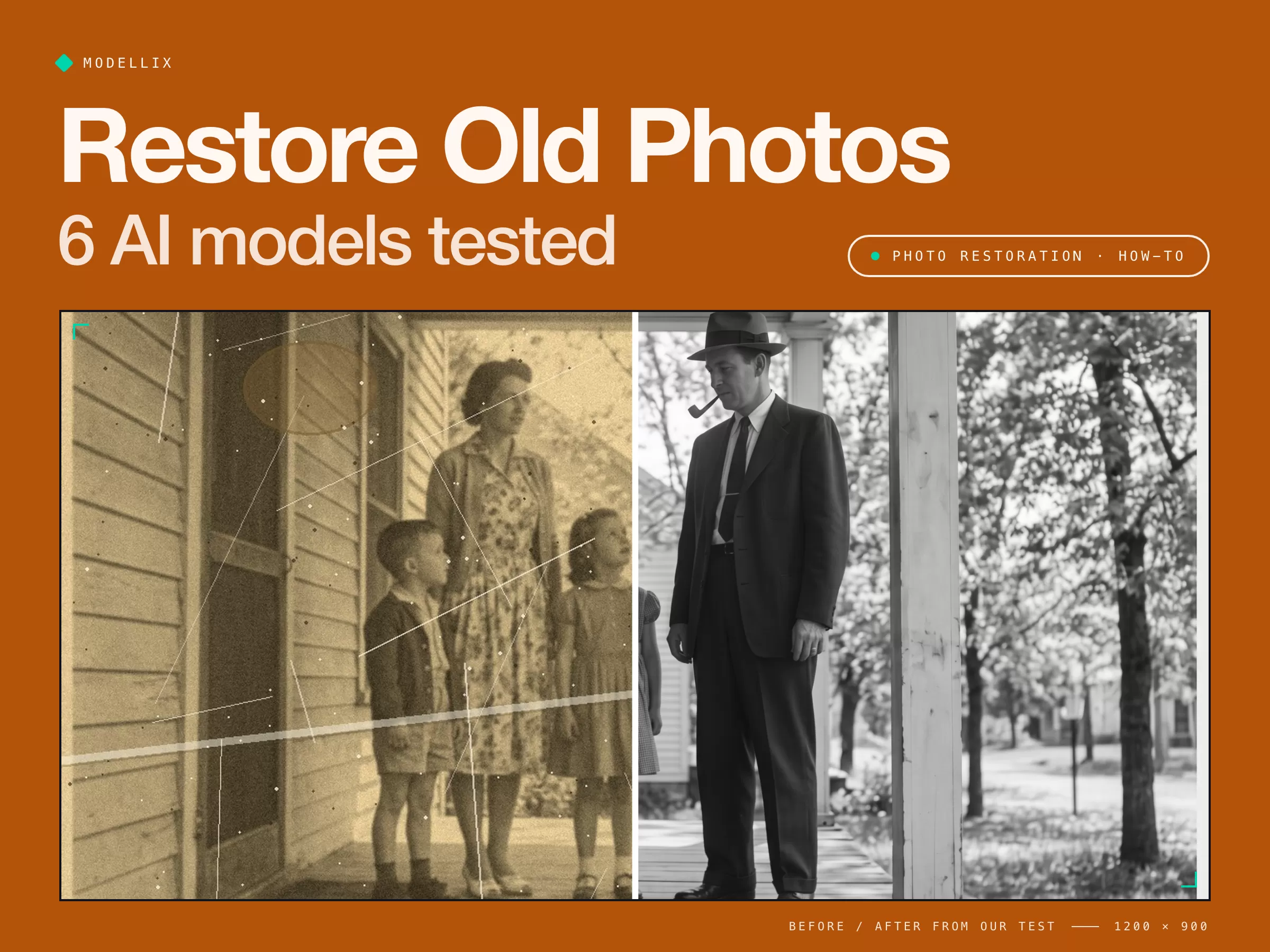
Old prints fade, crack, and pick up scratches, stains, and torn corners. You can fix all of that today with a free app, Photoshop, or an AI image model that takes a plain-English instruction.
The catch is faces. AI restoration redraws what it cannot see, so a grandmother can come back looking like someone else. We tested exactly that: we damaged a photo on purpose, ran it through six AI models, and measured how close each result came to the undamaged original.
Short version: Nano Banana 2 Edit kept faces closest, two models refused the photo entirely, and the cheapest result was not the worst. Here is the full process, from scanning to a restored family archive.

How to Restore Old Photos in 5 Steps
- Scan the print. Use a flatbed scanner at 600 dpi or more, or a phone scanning app in even daylight with no glass in front of the print. Small prints need the higher resolution most.
- Keep an untouched master. Save the raw scan once and never edit that file. Every restoration is a copy, so you can always start over or try another tool.
- Repair the damage. Remove scratches, creases, stains, and dust, fix fading, and rebuild torn corners. The four ways below all do this step.
- Check every face. Zoom to 100% on each face and compare it with the scan. If an eye, smile, or hairline changed, reject the result or try another model.
- Colorize a copy (optional). Colorization is a guess about the original colors, so keep the black-and-white restoration as the record. For a color version, see the colorize photo models.
4 Ways to Restore Old Photos at a Glance
| Way | Cost | Effort | Faces stay faithful | Whole archive |
|---|---|---|---|---|
| 1. Free restoration apps | $0 to start | Low | Varies | No |
| 2. Photoshop Neural Filters | Photoshop plan | High | Yes | No |
| 3. AI image models by prompt | From $0.035 per photo | Low | Varies | Yes |
| 4. Coding agent + the API | Same per photo | Lowest per photo | Varies | In batches |
"Varies" is not a dodge: in our test, face fidelity changed more between AI models than between any other choice you make.
Way 1: Free photo restoration apps
Canva has a Restore Old Photos app inside its editor, and commenters in a popular r/estoration thread suggest apps such as Remini, VanceAI, and MyHeritage. Upload a scan, tap restore, and download. They are the fastest way to see what a damaged print could look like.
Free-tier catches
- Small downloads. Free plans often cap the export size, which is too small for a print or a frame.
- Sign-up walls and daily credits. Fine for one photo, slow for a shoebox of them.
- Your family photos leave your device. Check where the app stores uploads and whether it keeps them.
- Faces get redrawn. Apps run the same kind of AI as Way 3, and you rarely get to pick the model when a face comes back wrong.
Way 2: Photoshop Neural Filters
Photoshop has a Photo Restoration Neural Filter (Filter, then Neural Filters, then Photo Restoration) with sliders for image enhancement, face enhancement, and scratch reduction. Finish with the Spot Healing Brush and Clone Stamp for anything the filter misses.
This is the most control you can get, and nothing about a face changes unless you change it. It also takes the longest per photo and needs a paid Photoshop plan. Source: Adobe's Neural Filters list.
Way 3: AI image models by prompt
General image edit models now restore photos from a one-paragraph instruction. You upload the scan, describe what to fix and what to keep, and pay per image. This is what we tested below, because it is also what most restoration apps run under the hood.
Way 4: A coding agent and the API
For a family archive or a client job with hundreds of scans, hand the folder to a coding agent. It uploads each scan, runs the same instruction on every file, and saves the results with the original file names. The setup is in the batch section below.
We Damaged a Photo on Purpose and Tested 6 AI Models
To measure honesty, you need the undamaged original. So we generated a 1950s-style family photo with Nano Banana Pro, then aged it ourselves: faded tones, a yellow cast, grain, 28 scratches (one across the mother's face), a crease, three water stains, dust, and a torn corner.
We sent the same instruction to six models, five from the Modellix photo restoration collection plus Nano Banana 2 Edit, through the Modellix unified API for image, video, and LLM models, then compared each result with the original using SSIM, a similarity score where 1.00 means identical.
Instruction sent to every model
Restore this damaged old photograph. Remove the scratches, crease, stains, dust and the torn corner, and fix the fading and yellow cast. Keep it a black-and-white photo. Do not change the people: keep every face, expression, pose, hairstyle and piece of clothing exactly as it is. Do not add or remove objects.
Same damaged scan1200 x 896 inputOne run per model

| Model | Faces similarity | Whole photo | Output size | Time | Billed |
|---|---|---|---|---|---|
| Damaged input (baseline) | 0.51 | 0.49 | 1200 x 896 | ||
| Nano Banana 2 Edit | 0.80 Closest | 0.74 | 2400 x 1792 | 18.0 s | $0.0909 |
| Grok Imagine Edit (Quality) | 0.70 | 0.62 | 1152 x 864 | 8.1 s | $0.072 |
| Wan 2.7 Image Pro Edit | 0.65 | 0.49 | 2369 x 1769 | 11.9 s | $0.0675 |
| Seedream 5.0 Lite Edit | 0.65 | 0.51 | 2304 x 1728 | 38.8 s | $0.035 |
| GPT Image 2.5 Sunburst Edit | Refused | $0 | |||
| MAI Image 2.6 Edit | Refused | $0 |
Faces similarity averages the four faces. Time is Modellix gateway processing time. Scores are our calculations at a shared 1200 x 896 size.

What the close-ups show:
- Nano Banana 2 Edit removed every scratch and the torn corner and kept all four faces recognizable. It is the only result we would frame without edits.
- Grok Imagine Edit came back clean in 8 seconds, but at 1152 x 864, and the faces are slightly smoothed.
- Wan 2.7 Image Pro Edit kept the composition but left heavy grain, so the photo still looks old.
- Seedream 5.0 Lite Edit was the cheapest, at $0.035, but left dust specks on the faces and changed the mother's face the most.
Restore your own photo with the same instruction
Open a model page, upload a scan, and paste the instruction above.
Try Nano Banana 2 Edit Try Wan 2.7 Image Pro Edit Explore photo restoration models →
Two models refused the photo
GPT Image 2.5 Sunburst Edit and MAI Image 2.6 Edit both returned a safety refusal. We retried with a plainer instruction that did not mention people, and both refused again, so the image itself triggered the filter, most likely because it shows children.
Family photos often include children, so expect this. If a model refuses, switch to another model instead of rewording. Refused tasks were not billed in our runs.
This is one photo and one run per model, not a benchmark. Real scans have their own damage, so run two models on one of your photos before committing to one.
Which AI Model to Use for Photo Restoration
| If you care most about... | Use | Why | Billed per photo in our test |
|---|---|---|---|
| Faces staying the same people | Nano Banana 2 Edit | Closest faces, full 2K output | $0.0909 |
| Speed | Grok Imagine Edit (Quality) | 8 seconds, but a smaller image | $0.072 |
| Keeping the period look | Wan 2.7 Image Pro Edit | Leaves film grain, least retouched look | $0.0675 |
| Lowest cost on simple damage | Seedream 5.0 Lite Edit | Cheapest; check faces closely | $0.035 |
For unblurring a soft photo instead of repairing damage, see our unblur image test, where the ranking changes.
How to Restore a Whole Family Archive at Once
Setup takes about 30 seconds: sign in with email, Google, or GitHub, add credit, and create an API key. You pay per photo, with no subscription.
Create your Modellix account →
Then paste this into Claude Code, Codex, or Cursor. One sentence and one API key are all your agent needs.
My Modellix API key is mdlx-••••••••••••••••••••••••. Read https://docs.modellix.ai/ways-to-use/api.md and https://docs.modellix.ai/google/nano-banana-2-edit.md. Upload every JPG in ./scans with the Modellix media upload API, run Nano Banana 2 Edit on each one at 2K with the instruction in restore.txt, poll each task, and save the results to ./restored with the same file names.
Swap the masked key for your own from the Modellix console and keep it private. Under the hood, the agent makes two calls per photo: an upload, then the edit request.
curl -X POST "https://api.modellix.ai/api/v1/media/files" \
  -H "Authorization: Bearer $MODELLIX_API_KEY" \
  -F "file=@./scans/porch-1955.jpg"

curl -X POST "https://api.modellix.ai/api/v1/google/nano-banana-2-edit" \
  -H "Authorization: Bearer $MODELLIX_API_KEY" \
  -H "Content-Type: application/json" \
  -d '{
    "prompt": "Restore this damaged old photograph. Remove scratches, creases, stains and dust. Keep every face exactly as it is.",
    "image": ["<url returned by the upload>"],
    "aspectRatio": "4:3",
    "imageSize": "2K"
  }'
Poll https://api.modellix.ai/api/v1/tasks/<task_id> until the status is success. Field details are in the API guide.
Tips for restoring and unblurring on Modellix
- Upload once, reuse the link. The media upload API is not billed and keeps each file for 7 days, so one upload can go to several models.
- Refusals cost nothing. In our runs, tasks blocked by a safety filter were not billed. Switch models instead of paying to reword.
- Compare two models on one photo first. Faces and text fail differently on each model. Pick the winner, then run the whole folder on it.
- Save results right away. Result links expire seven days after a task finishes, so download them as soon as the batch completes.
Restore Old Photos with One API Key for Every Model
Restoration is a model lottery. One model keeps faces, another works fast, and a third refuses your photo outright. With separate accounts for each, every refusal means a new sign-up.
However, the Modellix key from the batch section reaches every model in this test, plus image upscalers and colorization models, through the same upload-and-submit workflow. A refusal or a changed face is a one-line model switch, not a new integration.
Restore old photos with AI
Create a Modellix key, run your scans through Nano Banana 2 Edit and three other restoration models, and pay only for the photos you keep.
Get API KeyFrequently Asked Questions About Restoring Old Photos
How do I restore an old photo for free?
Scan it, then use a free restoration app such as Canva's Restore Old Photos app. Free tiers usually limit download size and daily uses, so they suit a few photos, not an archive.
Can a badly damaged photo be restored?
Usually, if the faces are still visible in the scan. Missing areas, like a torn corner, are rebuilt by guesswork, so check them against any other copies or photos of the same people.
Can AI restore old photos without changing faces?
Sometimes. In our test, face similarity ranged from 0.65 to 0.80 depending on the model. Tell the model to keep every face unchanged, then compare each face at 100% zoom.
Should I colorize my restored photos?
Only as a copy. Colorization guesses the original colors, so keep the black-and-white restoration as your record and treat the color version as an illustration.
Related articles
Unblur Image Free [Tested]: 4 Ways and 4 AI Models
Unblur an image for free on your phone, online, or with AI. We blurred a photo and tested 4 AI models: all fixed the sign, not all kept the face.
Nano Banana 2.1 [Latest]: Price, Benchmarks & vs Pro
Nano Banana 2.1 costs $0.0336 per 1K image, half of Nano Banana 2, and beats Pro in Google's tests. Pricing, benchmarks, a real test, and what to use now.
AI Image Edit API: 16 References, Masks, Flare vs Sunburst
An AI image edit API in practice: the 16-reference ceiling, mask alpha rules, 1K-4K tiers, and the Sep 17 2026 price band for Flare Edit vs Sunburst Edit.
Qwen-Image-Edit Prompt Guide: Patterns, Pricing & Code
Qwen-Image-Edit prompt patterns drawn from the model's own prompt rewriter: five instruction slots, image numbering, six edit types, failure fixes, live prices.